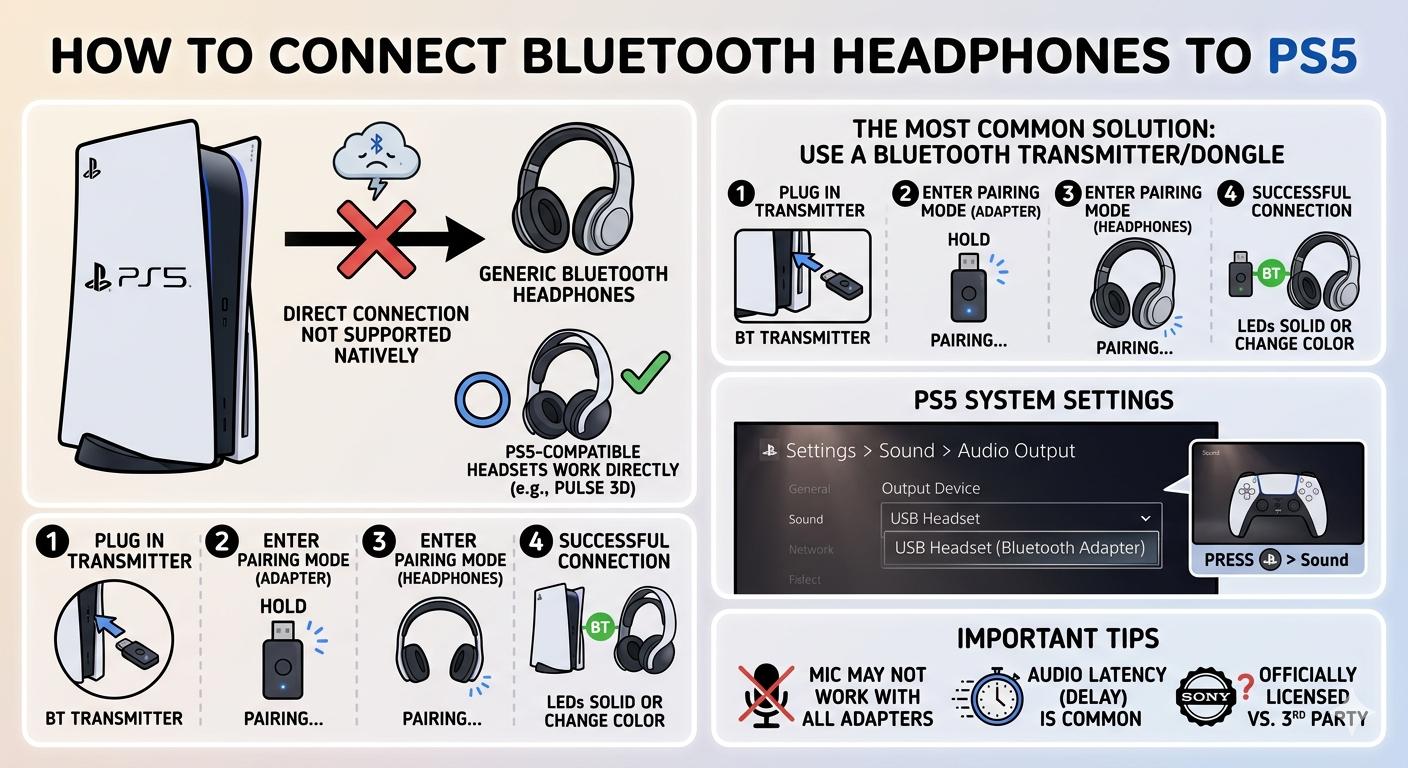
How to Connect Bluetooth Headphones with PS5 Wireless gaming setups are becoming more popular every day, and Bluetooth headphones are one of the biggest reasons why. They remove the hassle of wires, provide comfort during long gaming sessions, and give a modern feel to your setup. However, if you own a PlayStation 5, you might have already realized that connecting Bluetooth headphones is not as simple as it should be.
Unlike smartphones or laptops, the PS5 does not directly support most Bluetooth audio devices. This confuses many users because they expect a simple pairing option, but instead, they find limited compatibility. The good news is that there are several reliable ways to connect your Bluetooth headphones to a PS5, and once you understand the methods, the process becomes easy.
Why PS5 Does Not Support Bluetooth Headphones Directly
Sony designed the PS5 in a way that prioritizes performance and gaming experience. One of the main reasons Bluetooth headphones are not directly supported is audio delay. Bluetooth technology can introduce latency, which means the sound you hear may not perfectly match the action happening on screen.
In fast-paced games, even a small delay can affect performance. Imagine hearing footsteps or gunshots a fraction of a second late — that difference can impact your reaction time. Sony also uses Bluetooth internally for controllers, and adding audio devices could create interference or reduce stability.
Because of these limitations, the PS5 restricts direct Bluetooth audio connections. This doesn’t mean you can’t use your headphones — it simply means you need alternative methods.
Method 1: Using a Bluetooth Adapter
The most effective and widely used method is a Bluetooth adapter. This small device plugs into your PS5 and acts as a bridge between your console and your headphones.
A Bluetooth adapter bypasses the console’s limitations by handling the wireless connection itself. Many adapters are specifically designed for gaming and support low-latency audio, which reduces delay.
To set it up, start by plugging the adapter into one of the USB ports on your PS5. Most adapters will power on automatically. Next, put your Bluetooth headphones into pairing mode by holding the power button until the indicator light starts blinking.
The adapter will detect the headphones and connect to them. Once paired, go to the PS5 settings menu, open the sound settings, and select the USB device as your audio output. After this step, all game audio will be routed through your headphones.
This method works with most Bluetooth headphones and provides a stable connection. The audio quality is generally good, especially if you choose an adapter with low-latency support. One limitation is that microphone functionality may not always work properly, depending on the adapter.
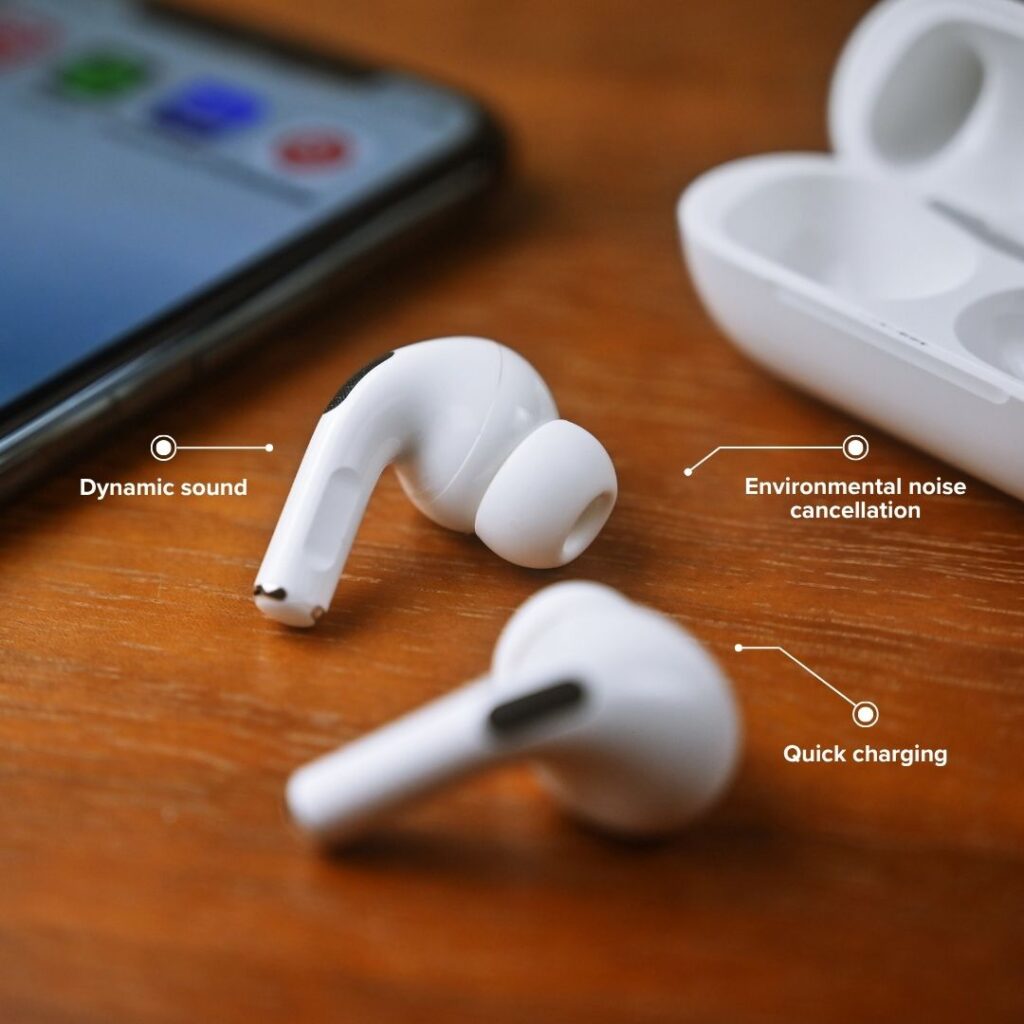
Method 2: Connecting Through Your TV
If your television supports Bluetooth, you can connect your headphones directly to it instead of the PS5. This method is simple and does not require any additional hardware.
Start by opening your TV’s settings menu and navigating to the Bluetooth section. Turn on pairing mode on your headphones, then select them from the list of available devices on your TV. Once connected, any audio coming from the PS5 will be transmitted to your headphones through the TV.
This setup works well for casual gaming and watching movies. However, there may be a slight delay in audio, depending on your TV’s processing speed. Another limitation is that you won’t be able to use the microphone on your headphones for in-game chat, since the connection is handled by the TV.
Method 3: Using the DualSense Controller (Wired Option)
If your headphones come with a 3.5mm audio cable, you can connect them directly to the PS5 controller. This is the easiest and most reliable method, especially for competitive gaming.
Simply plug the audio cable into the headphone jack on the DualSense controller and connect the other end to your headphones. The PS5 will automatically detect the connection and route audio through the controller.
You can adjust settings by going to the sound menu and selecting the controller headset as the output device. This method provides zero latency, meaning the audio is perfectly synchronized with the gameplay.
Although this option removes the wireless convenience, it offers the best performance. It is ideal for players who want accurate audio without any delay.
Method 4: Using Official Wireless Headsets
Sony offers its own range of wireless headsets designed specifically for the PS5. These headsets do not use standard Bluetooth. Instead, they come with a USB transmitter that connects directly to the console.
Once you plug in the transmitter and turn on the headset, the connection is established automatically. These headsets are optimized for the PS5 and support features like 3D audio, which enhances immersion during gameplay.
Because they are built for the console, they provide better compatibility, lower latency, and full microphone support. This makes them a strong option for users who want a seamless experience without dealing with third-party adapters.
Method 5: Using Remote Play
Another creative method is to use Remote Play. This allows you to stream your PS5 gameplay to another device, such as a smartphone, tablet, or computer.
After installing the Remote Play app and connecting it to your PS5, you can pair your Bluetooth headphones with your secondary device. The audio will then play through your headphones while you control the game remotely.
This method works without additional hardware, but it depends heavily on your internet connection. A slow or unstable connection can introduce lag, which may affect gameplay. It is better suited for casual gaming rather than competitive sessions.
Common Issues and How to Fix Them
Sometimes users face problems when trying to connect Bluetooth headphones to their PS5. One common issue is the headphones not connecting at all. This can usually be fixed by resetting the headphones, restarting the adapter, or trying a different USB port.
Another issue is no sound output. In this case, you should check the PS5 audio settings and make sure the correct output device is selected. If you are using a TV connection, ensure that the TV is properly paired with the headphones.
Audio delay is another frequent concern. Using a low-latency adapter can help reduce lag. If delay is still noticeable, switching to a wired connection is the best solution.
Microphone problems are also common with Bluetooth setups. Many adapters do not fully support microphone input, so you may need to rely on the controller’s built-in mic or use a dedicated gaming headset.
Tips for Better Performance
Choosing the right equipment can make a big difference in your experience. Adapters that support low-latency codecs provide smoother audio and reduce delay. Keeping your headphones fully charged helps maintain a stable connection and prevents sudden disconnections.
Wireless interference can also affect performance. Keeping the adapter close to your headphones and avoiding crowded wireless environments can improve signal strength. Updating your PS5 system software and headphone firmware ensures better compatibility and performance.
Wired vs Wireless: Which One Should You Choose?
Both wired and wireless setups have their advantages. Wired connections offer zero latency and the most reliable performance, making them ideal for competitive gaming. Wireless setups provide convenience and freedom of movement, which is great for casual use.
If your priority is performance, a wired connection is the best choice. If you prefer comfort and a clean setup, using a Bluetooth adapter or wireless headset is more suitable.
Final Thoughts
Connecting Bluetooth headphones to a PS5 may seem complicated at first, but once you understand the available methods, it becomes straightforward. The console’s limitations are there to ensure a smooth gaming experience, but they can be worked around with the right approach.
Whether you choose a Bluetooth adapter, connect through your TV, use a wired setup, or invest in an official wireless headset, each method has its place. The best option depends on your needs, budget, and how you prefer to play.
With the right setup, you can enjoy immersive sound and a comfortable gaming experience without being restricted by cables.
Contact Us for headphones.